

Apple Motion · 41 lessons · 8+ hours
Stop buying plugins.
Start building them.
I'm Dylan, the Final Cut Bro. I opened Apple Motion for the first time in 2020 and had no idea where to start. It's now part of my everyday editing workflow and I teach it at conferences. This is the course I wish I'd had on day one.
Join the Masterclass · $149or 4 payments of $37.50 · lifetime access
I've been there...
You're a good editor. Final Cut is second nature. Then a job needs a lower third that doesn't look like a preset, or a zoom you can actually control, and you go looking for a plugin. You buy one. Again.
Apple Motion is a one-time purchase on the Mac App Store, around fifty bucks. There's a decent chance you've spent more than that on plugins this year. Maybe you already own it. Maybe you opened it twice, closed it inside ninety seconds both times, and haven't touched it since, because even though it's closely related to Final Cut Pro... they feel worlds apart, and nothing is where you expect it to be.
But it doesn't have to be that way.
My most popular plugins Pro Zooms, Pro Vertical and more recently Pro Subtitles were all created using Motion, and nothing else.
The gap between buying plugins and building them is about eight hours.
Things you'll have actually made.
Finished projects, with the files.

A 3D parallax photo animation
One still image, real depth, and a camera that moves through it.
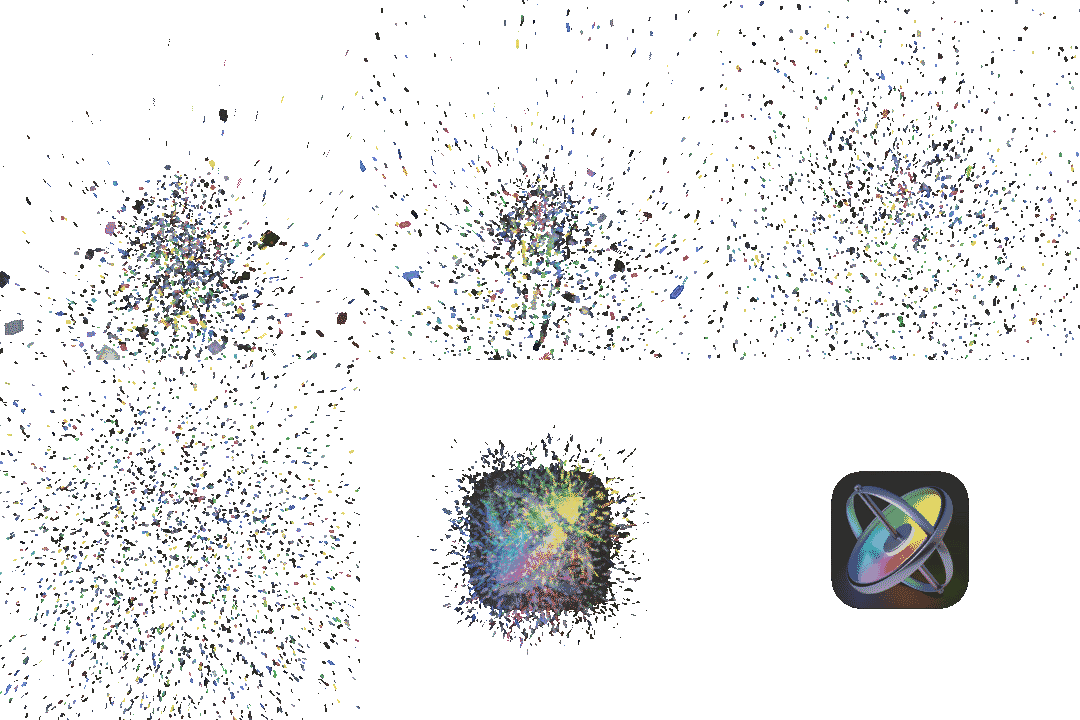
A particle logo reveal
The effect everyone assumes needs After Effects.
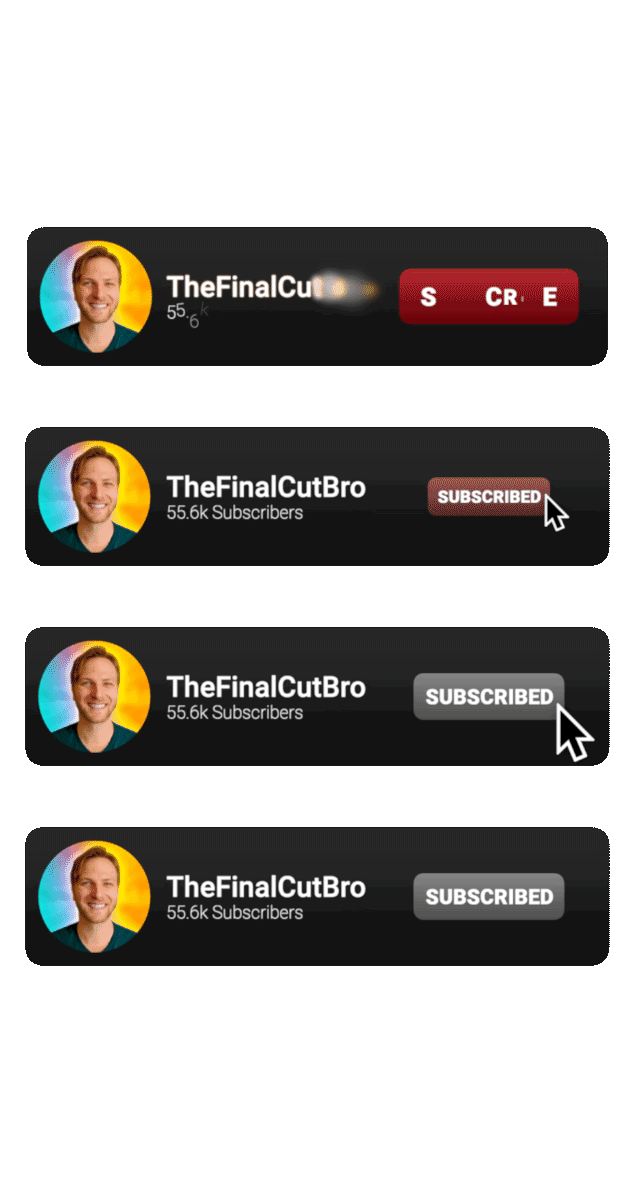
A rigged Final Cut template
With Published Parameters, so an editor can restyle it without ever opening Motion.
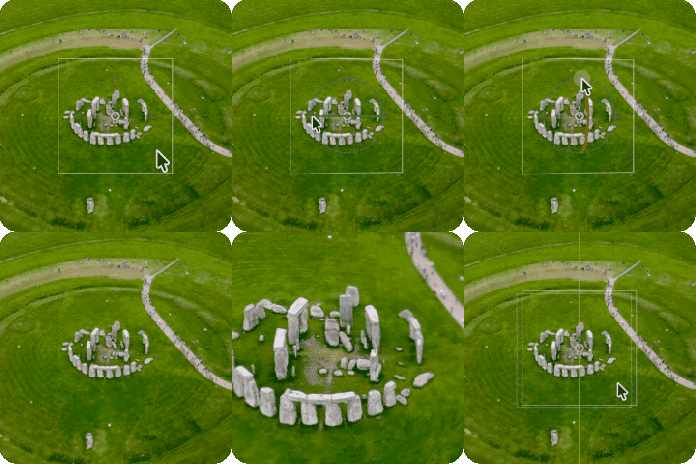
A custom zoom tool for Final Cut
A real utility plugin you'll actually use on jobs.
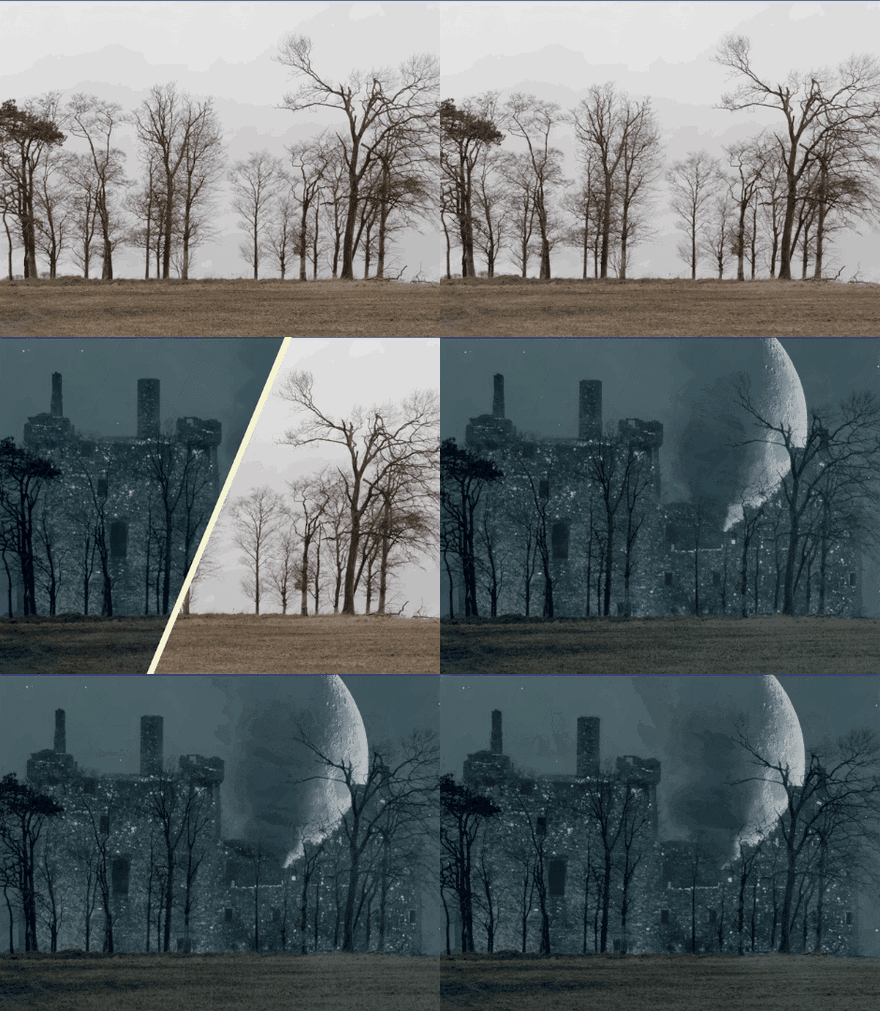
A VFX shot
Tracked, stabilized, composited, including the un-stabilize trick almost nobody knows about.

A full logo animation, start to finish
The Slime Castle build, one of the five bonus videos.
Let's make sure this is actually for you.
This is for you if…
- You edit in Final Cut Pro and you've never really used Motion
- You've opened Motion, felt lost, and quietly gone back to buying plugins
- You want templates that look like yours instead of everyone's
- You've wondered whether you could sell the things you make
- You learn by building, not by watching a features tour
This isn't for you if…
- You're already comfortable building rigged, published templates with Parameter Behaviors. You know most of this
- You don't use Final Cut Pro. A lot of this course is about making Motion and Final Cut talk to each other
- You're looking for After Effects. Different app, different course, not mine
Eight hours, eight chapters.
41 lessons. Every one of them builds something. Here's the route.
CHAPTER 1You stop being scared of the interfaceBy the end you can open Motion and know where everything lives. · Modules 1–8+
- The Project Browser
- Library & Inspector
- Layers Panel
- The Viewer Pt 1: The Tools
- The Viewer Pt 2: Settings & Overlays
- The Timeline
- The Toolbar
- Recommended Settings
CHAPTER 2You build your first real Final Cut templateThe big one. You finish with a template an editor can restyle in Final Cut without opening Motion. · Modules 9–14+
- Creating a Simple Background
- Animation Basics
- Titles
- Publishing Parameters
- Creating a Simple Graphic Template
- Rigging & Publishing Your Graphic Template
CHAPTER 3You add a third dimensionFlat images become spaces you can move a camera through, and you build a zoom tool you'll keep using. · Modules 15–17+
- 3D Camera Basics
- 3D Parallax Photo Animation
- Create a Zoom Tool for Final Cut Pro
CHAPTER 4You make particles do what you wantThe effect people assume needs After Effects. · Modules 18–19+
- Particle Emitters Overview
- Particle Logo Reveal
CHAPTER 5You pin things to moving footageTracking, stabilizing, and the un-stabilize trick almost nobody knows about. · Modules 20–23+
- Object Tracker Basics
- 4 Point Tracking
- Stabilize and Un-Stabilize
- Making a VFX Shot
CHAPTER 6You get preciseThe Keyframe Editor stops being intimidating and starts being where you fix things. · Modules 24–25+
- The Keyframe Editor
- Using Keyframes to Build a Transition
CHAPTER 7You learn the thing Motion does that nothing else doesParameter Behaviors. Animation without keyframes. This chapter changes how you work. · Modules 26–29+
- What Are Parameter Behaviors
- Every Parameter Behavior Pt 1
- Every Parameter Behavior Pt 2
- The Link Parameter
CHAPTER 8You build a real pluginEverything above, combined into one advanced plugin. The capstone. · Module 30+
- Creating an Advanced Plugin
Then, because we're not quite done:
Five bonus videos: Drop Zone Deep Dive · A More In-Depth Look At Rigs · Creating & Distributing Automatic Template Installers · Slime Castle Logo Reveal (Advanced Animation) · Creating an Advanced 3D Zoom Tool. Plus two live Q&A recordings, my Apple Motion YouTube playlist, and the Discord.
Parameter behaviors
Animation doesn't have to be hard.
Parameter behaviors do the tedious part. You get to play.
Keyframing works. It's also slow. Every position hand-recorded, every curve hand-shaped, and when you decide it should be faster you go back and redo the lot.
A parameter behavior is a rule instead of a recording. Drop Oscillate onto a parameter, give it a frequency and an amplitude, and Motion generates the motion for you. Two numbers instead of ten operations.
The speed is the obvious part. The better part is what it does to how you work. When a bounce takes ten seconds to build instead of ten minutes, you stop planning animations and start messing with them. You drag a value to see what happens, then drag it further because it looked good. Most of the effects I sell started as exactly that.
Four modules on these, including one on the Link parameter, which is how you get one control to drive five things at once.
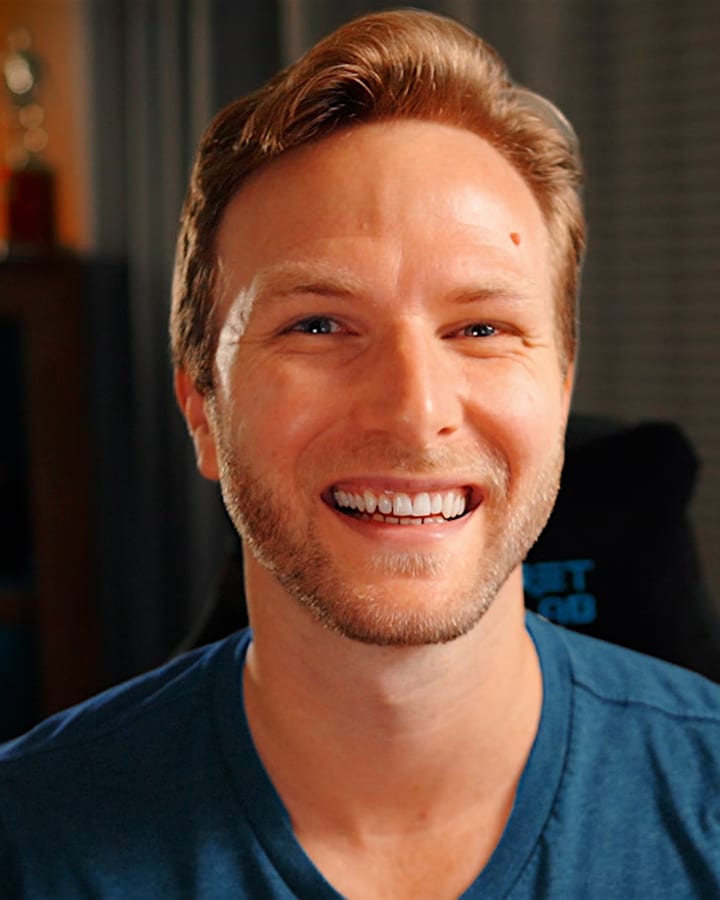
Hey, I'm Dylan.
I've been editing for over 20 years. My dad's a filmmaker, so there was always gear lying around the house and I started messing with it long before I knew what I was doing. Later on I worked sets as a grip, a gaffer and a DP. Post is the part I kept coming back to, and it's where I've stayed.
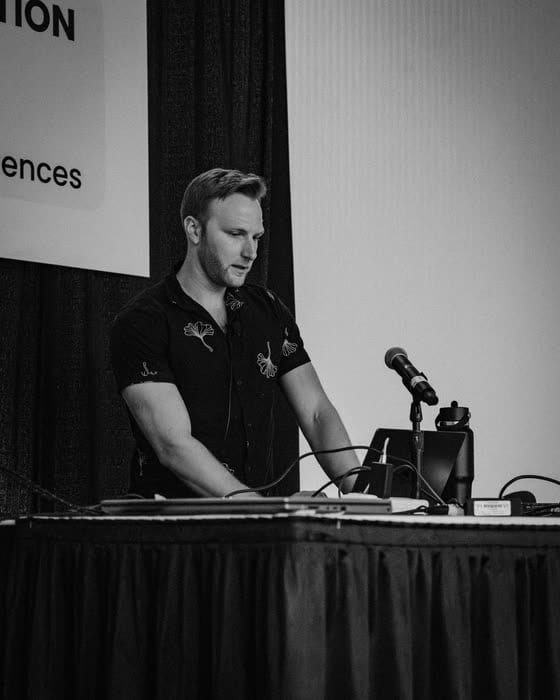
On YouTube, I'm known as The Final Cut Bro. I teach all about Final Cut Pro, Compressor and of course Apple Motion. I've even been able to speak at a few conferences (who knows what they were thinking 😅) like the Final Cut Pro Creative Summit and more recently at NAB in Las Vegas.
I also build plugins for Final Cut Pro, like Pro Zooms, Pro Subtitles, Pro Vertical, and loads of others...
Every one of these templates was built using Motion without a single line of code.
I didn't start using Motion until 2020, and when I finally did... I learned it the hard way. I spent hours on end struggling to get basic graphics created, because I didn't follow any sort of program.. and it took me years. But you can learn it in just 8 hours!
What real students are saying.
Every one of these is a public comment on my YouTube channel.
"I highly recommend Dylan's 'The Final Cut Bro's Apple Motion Masterclass'… After going through the lessons and learning all about Motion, I now consider myself a pro, and my clients love seeing the pizzazz it adds to their video projects when I use it. It's well worth the money!"
"Just doing the Motion masterclass. I can highly, highly recommend it, even as a seasoned Motion Graphic and having plenty of Motion experience. There's so many little tricks and settings that I never even knew existed. And they're going to save me a ton of time!"
"Seriously check out Dylan's Motion Master Class. I've been using Motion for a few years and I still signed up for the course. Dylan has a ton of lessons in it. And I don't get paid for recommending it. It's just that good!"
"You really helped me to become a better editor and motion graphic designer! I have just bought your Apple Motion Masterclass and it's amazing! Thank you!"
"That Motion Masterclass is teaching me a TON- so I feel like I now understand how you made that download!"
"Bought your motion Masterclass and many of your plugins. Well worth the price ❤️"
Everything you get.
- 41 lessons, 8+ hours of step-by-step training
- Project files so you can open exactly what I'm building
- 5 bonus videos, including how to build and distribute automatic template installers
- 2 live Q&A recordings
- The private Discord, where I answer most messages myself
- Automatic dubbing in 9 languages through YouTube
- Lifetime access, including every future update
Pay how you want.
Both options are lifetime access to everything.
Spread it out
per month for 4 months
Start the payment planCode Save50 is applied for you at checkout.
30-day money-back guarantee.
Take the whole course. If it isn't what you wanted, email me inside 30 days and I'll refund you.
Questions I get asked.
Do I need to buy Apple Motion?+
Do I need Final Cut Pro?+
I'm a complete beginner in Motion. Is it too early?+
What version of Motion do I need?+
How long do I get access?+
Are project files included?+
What if it's not for me?+
Is the Discord actually active?+
Can I watch this if English isn't my first language?+
One thing worth knowing before you buy. Motion's own interface is available in French, German, Italian, Japanese, Korean, Portuguese, Spanish and both Chinese scripts, and it follows whatever your Mac is set to. So if you're watching the Hindi or Indonesian dub, the app on screen will still be in English.
Eight hours.
That's the distance between buying plugins and building them.
Join the Masterclass · $149or 4 × $37.50 · lifetime access